Frequently Asked Questions
Have questions about self-service advertising on Zillow Group Media Manager? We’ve got answers!
Getting Started
- What is Zillow Group Media Manager?
Zillow Group Media Manager is a self-service advertising platform that allows you to easily launch and manage ad campaigns. Ads run across Zillow, Trulia and Hotpads and appear in the search results next to listings in your specified service area.
On Zillow Group Media Manager, you can:
- Reach a highly qualified mover audience across our real estate network.
- Target potential customers by current or future residence location.
- Set a flexible campaign budget between $500 to $15,000.
- Get 24/7 access to the dashboard to manage campaign performance, budget and delivery.
Sign up and access the platform at https://mediamanager.zillowgroup.com/
- Who is eligible for Zillow Group Media Manager?
Most businesses with campaign budgets between $500 and $15,000 are eligible to run ad campaigns on Zillow Group Media Manager. Please review our creative guidelines and approval policies for a list of industries that are not eligible to advertise on our platform.
- What ad format is available?
Search Ads is the ad format that can be booked on Zillow Group Media Manager. These ads display in the third tile position on the search results page on Zillow, Trulia and HotPads next to home listings.
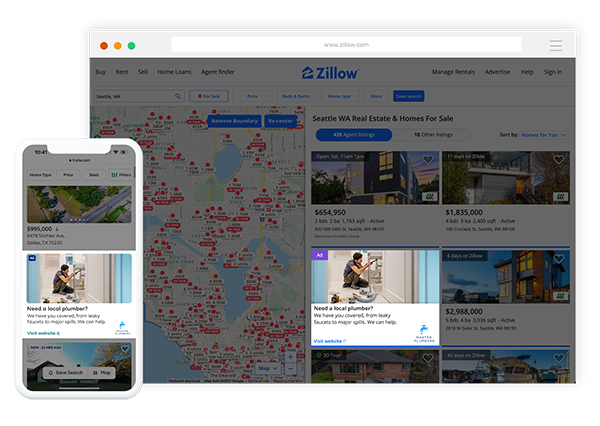
- Why can’t I see my ad when I visit Zillow, Trulia, or HotPads?
You might not see your ad when visiting our site because the ads are paced to deliver the budget evenly throughout the total number of days within your campaign. If the ad has met its delivery cap for that day it may not be eligible to be shown to the user.
- Is there a minimum duration per campaign?
There are no minimums, but we recommend a campaign run for at least 14 days.
- How do I add another account from my company/team?
Follow these steps to create a new Sub-Account advertiser:
1. Login as an Advertiser
2. Select Sub-Accounts tab in the Left navigation pane
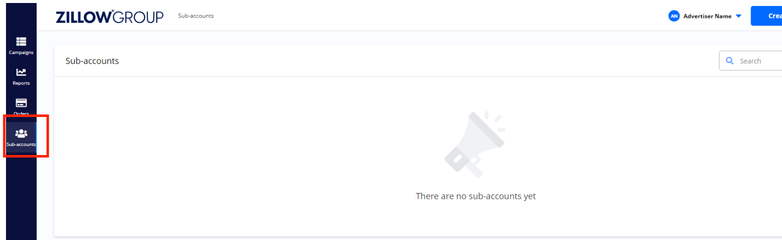
3. Click “New Sub-Account” button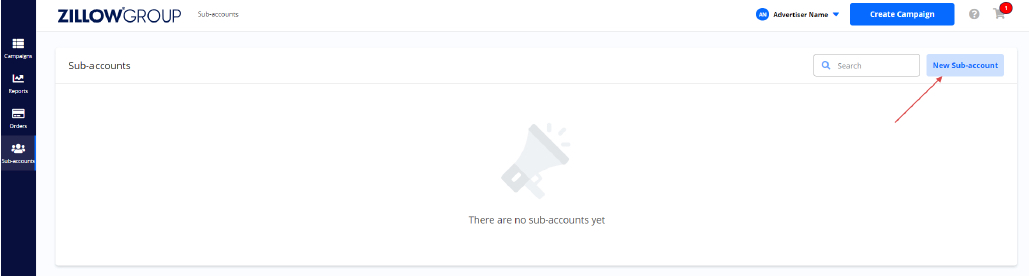
4. Fill out the form5. Click “Create”
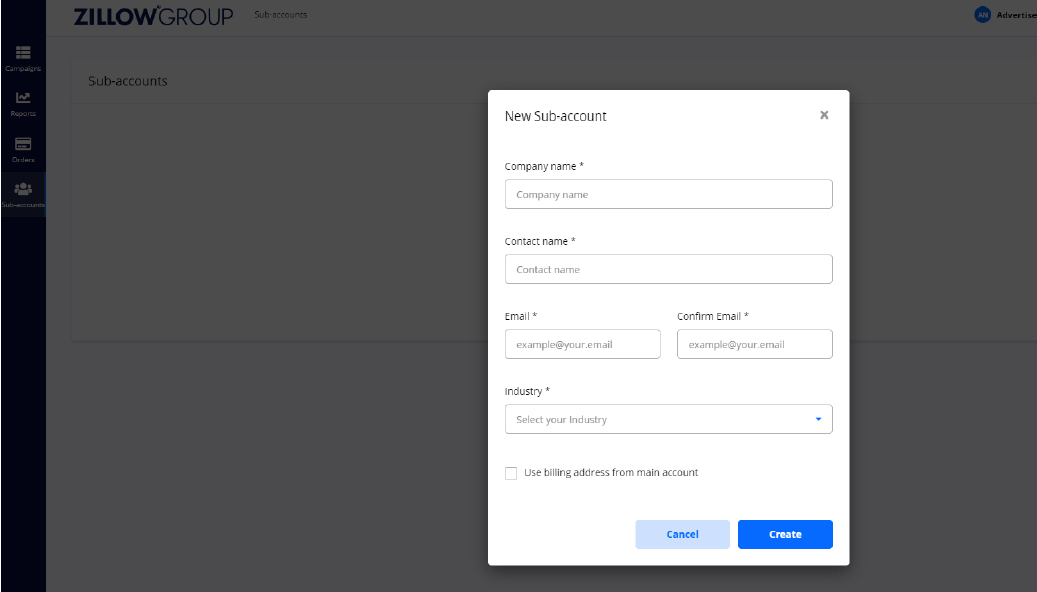
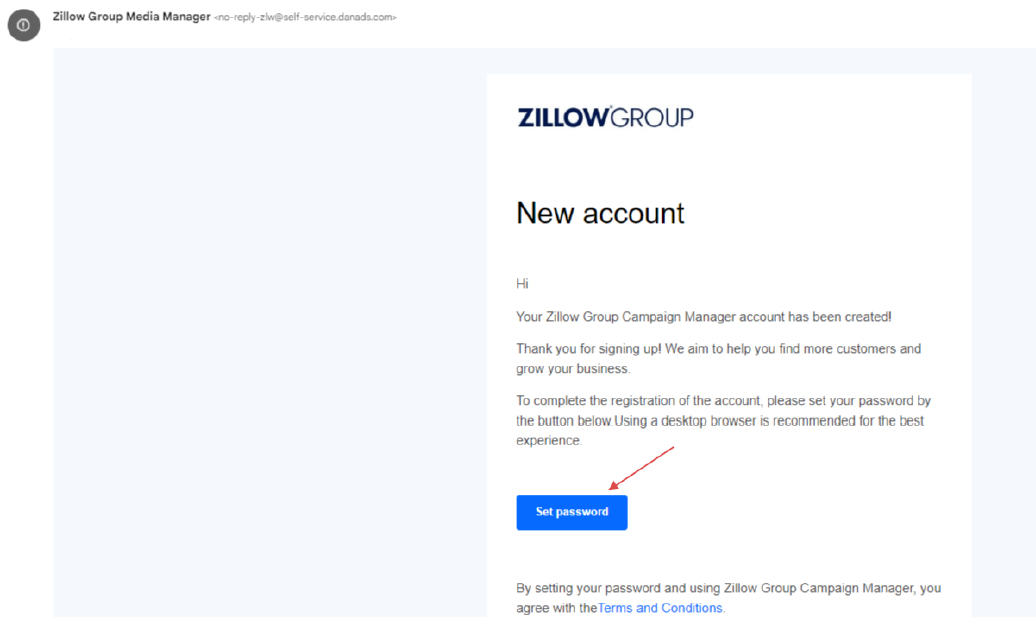
6. Navigate to used email address inbox7. Open an email notification with a link to “Set password” page
8. Set up a password for the newly created Sub-Account
9. Login as newly created Sub-Account- How do I create a client account if I am an agency managing multiple accounts?
Follow these steps to create a new Sub-Account:
1. Login as an Agency user
2. Click “Sub-Accounts” button in the Left navigation panel
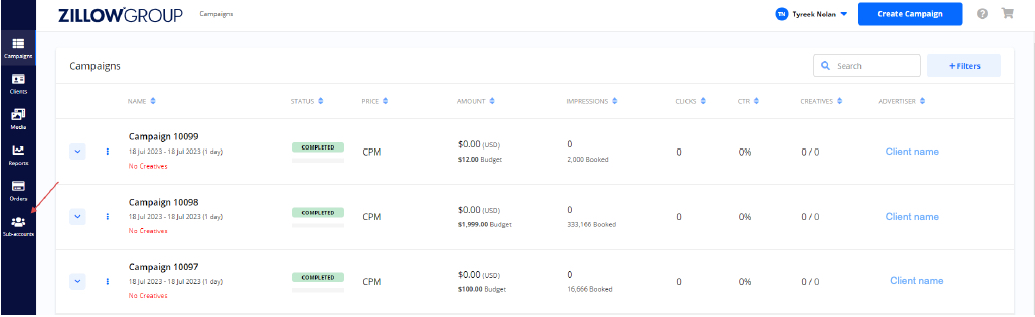
3. Click “New Sub-Account” button

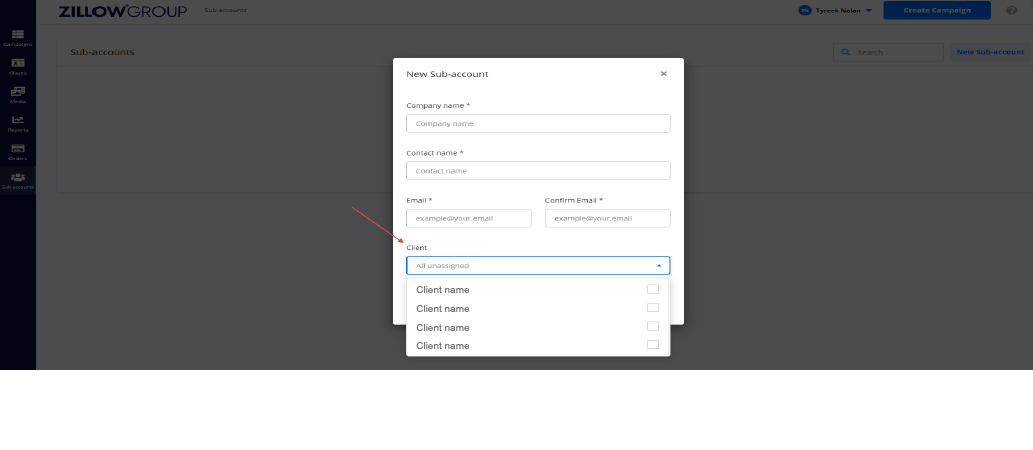
4. Fill out the form and specify the client(s) the new Sub-Account is going to be assigned to
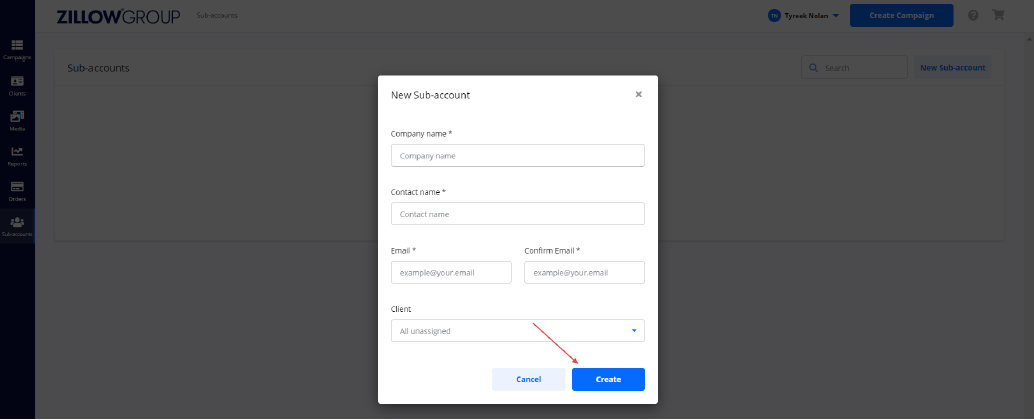
5. Click “Create”
6. Navigate to used email address inbox7. Open an email notification with a link to “Set password” page
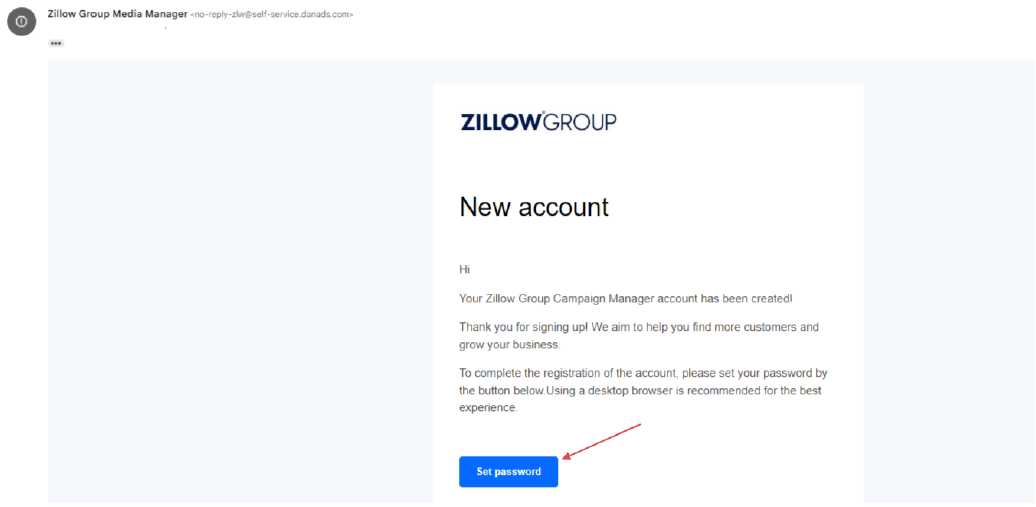
8. Open an email notification with a link to “Set password” page
9. Set up a password for the newly created Sub-Account
10. Login as newly created Sub-Account
Billing
- What does it cost to advertise on Zillow Group?
Signing up for an account is free and you can launch your first local ad campaign on Zillow Group Media Manager for as little as $500.
A $500 campaign will deliver 83,333 impressions at a $6.00 cost per thousand impressions.
- Is there a minimum or maximum budget?
The minimum campaign investment is $500 (83,333 impressions) and the maximum campaign investment is $15,000 (2,500,000 impressions).
- When will my credit card get charged for the campaign?
At the time of check out, you will be charged for the total number of booked impressions for each campaign.
- What happens if my campaign does not fully deliver?
In the event of under-delivery at the end of your campaign, you will receive a refund for the number of impressions that were not delivered. As an example, if your campaign did not deliver 41,666 impressions then you would be reimbursed $250.
Reimbursements will be issued within 5 days of the order’s end date and will appear back in your original credit card payment.
- Can a campaign budget be updated after it goes live?
Campaign budgets cannot be updated after you have paid. You will need to duplicate an existing campaign to create a new order to add dollar amounts of $500 or more.
- How can I get a copy of my invoice?
To get a copy of your invoice go to the Order details page → Select “Documents” → Review all invoices and select which one(s) to download.
- What do the different payment statuses mean?
Payment statuses are listed in the campaign details section. They include the following statuses:
- Settled: Payment is confirmed and the budget has been captured from the credit card.
- Sent for refund: Refers to when a refund is issued due to undelivered impressions in the campaign. It usually takes 2-5 business days to complete the refund.
- Completed: All campaigns that were part of the booking are completed. Any potential under-delivered impressions have been calculated, and a potential refund is issued.
- Invalid credit card: There is an issue with your credit card. For more information please contact Zillow Group. A contact form is available through the Support button in the dropdown menu in the top right corner.
- Do you accept payment with international credit cards outside of the US?
No, we only do business with advertising partners within the United States and do not accept payment through international credit cards. You must have a US billing address and credit card to book a campaign on Media Manager.
Cancellations
- Can I cancel my campaign?
To submit a cancellation, follow these steps:
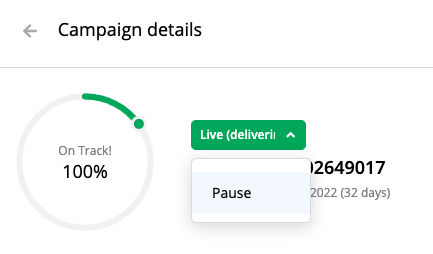
1. Go to your campaign details and update the status from “Live (delivering) to “Pause”.
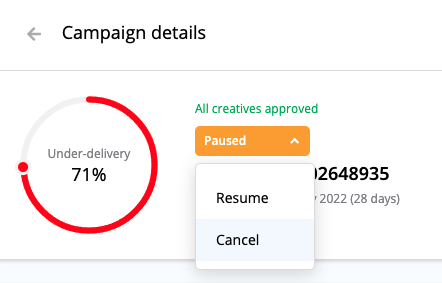
2. Then change the status from “Paused” to “Cancel”.
- How will I get reimbursed if I submit a cancellation request?
You will receive a refund back to your original credit card used for payment.
- When will I get my refund once I’ve canceled my campaign?
You will receive a refund within 5 business days of your campaign cancellation.
Campaigns
- What do the different types of campaign statuses mean?
To view the status of your campaign, go to the campaign details page. Various statuses are available based on your campaign progress, these include the following:
- Draft: The campaign has been submitted and is currently being created in Zillow Group Media Manager. This process can take up to 30 minutes after it has been submitted.
- Inactive: There are no approved creatives added to the campaign.
- Ready: At least one creative has been approved and the campaign is ready to go live at the set start date.
- Completed: The campaign has fulfilled the budget and is no longer delivering impressions.
- Inventory released: The campaign has been canceled and will no longer deliver impressions.
- Delivering: The campaign is currently delivering impressions.
- Paused: The campaign has been paused and is no longer delivering impressions. The campaign must be resumed in order to deliver impressions.
- What do the different types of campaign progress indicators mean?
To view the progress of your campaign, go to the campaign details page. Various progress statuses are available based on your overall campaign delivery:
- Under-Delivering: The daily expected impressions are below the target for the day. This is common at the beginning of a campaign because the ad server takes a few days to calibrate delivery. If a campaign starts late it will also take a few days for your campaign to deliver evenly across the remaining number of days.
- Good Progress: The daily impressions are delivering on target for the day.
- On Track: The campaign is on pace to deliver its impressions in full.
- How are impressions delivered across the entire campaign duration?
Our ad server plans to distribute impressions evenly across all days of your campaign. It is common that each day will not be identical due to fluctuations in traffic. Our ad server will do its best to average out the number of impressions over the remaining days of your campaign so that it can deliver in full. You can access your dashboard in Zillow Group Media Manager at any time to see how your ads are delivering.
- Are campaigns guaranteed to meet the booked impressions?
Our intent is to deliver all campaigns fully, however unanticipated events can arise. If your campaign does not deliver all your booked impressions by the end of your campaign your credit card will be automatically refunded for the number of impressions that were not delivered. It takes approximately 5 business days for a refund to fully process back to the credit card you used for the initial payment.
Creative
- What types of ad creatives are required?
We recommend high-resolution imagery that features people interacting with your product or service as the featured image. A high-resolution logo that includes your business name for impactful brand recognition is required. All images are subject to Zillow Group approval and must adhere to our Creative Approval Policies & Guidelines.
- How many creatives can be rotated under one campaign?
Up to 6 creatives can be added per campaign. All creatives will rotate evenly.
- Can I add more than 6 creatives under one campaign?
No, the limit is 6. If you wish to use more creatives for A/B testing then we recommend you set up an additional campaign.
- My campaigns are currently pending review. How long will it take for them to get approved?
Creatives are reviewed within 48 hours of submission. Any campaign creatives that are submitted on a Friday will be reviewed and approved the following business day. Weekends are excluded during this timeframe. Our business hours are Monday through Friday 9am-5pm ET.
- Why are my creatives reviewed?
Creatives are reviewed to ensure they adhere to our site guidelines. All images, business logos and text must be high quality and appropriate for a general audience.
- What do I do if my creative has not been approved?
You will need to go back to the “Creatives” section of your campaign and follow these steps:
- Select “+Creative” to upload a new image, logo, header text, and sub-header text that adheres to our Creative Approval Policies & Guidelines.
- Once submitted, revised creatives will then be reviewed within 48 hours of submission.
- Can a campaign creative be updated after it launches?
You cannot edit an approved creative, but you can always add new ones after your campaign has launched. This is a great choice if you’d like to A/B test up to 6 creatives and optimize whichever one is garnering the most clicks.
You can pause or resume the creative you are using for the campaign at any time, but must have at least one active creative per campaign to remain live on the site. You can manage the creatives on a campaign by entering the creative section through either the booking details or campaign details pages and pressing the edit button.
Targeting
- What geo-targeting is available on Zillow Group Media Manager?
You can geo-target your campaign by State, Metropolitan Area, County or City. Additionally, you have the option to target by Current Location (where a customer is physically located) or by Future Location (where customers are searching).
- What is Current Location targeting?
Current Location targeting allows you to show ads to customers based on where they are physically located. This type of targeting is done by reaching people whose Internet Protocol (“IP”) address is in a network of a physical location that you are looking to target. We recommend choosing this option when you only want to reach people that are currently based in that physical location. For example, if a customer is browsing Zillow.com in New York, then the ads will be targeted based on that location even while they are searching in other locations.
- What is Future Location targeting?
Future Location geo-targeting allows you to show ads to customers based on where they are searching on Zillow, Trulia and HotPads. Customers do not have to be physically in that location. For example, if a customer is browsing Zillow.com at home in New York and searching for homes in California. The customer will only see ads targeted to California, even though they are not physically in California.
- What type of device targeting is available?
You can target one or more of the following devices:
- Desktop
- Tablet
- Mobile
- How are ads matched to users searching properties?
Ads are matched to users who are searching for listings available in your locations. Your ad will be displayed next to listings in the search results pages on Zillow, Trulia and HotPads.
- Are there any audiences that I can add to my campaign?
Yes, we offer the following audiences below:
- First-Time Home Buyers
- Low-Funnel Home Buyers
- Mid-Funnel Home Buyers
- New Construction Home Buyers
- Real Estate Agents
- Renters
- Upper-Funnel Home Buyers
Reporting
- How can I set up automated reporting via email?
If you would like to set up automated reporting by email you can do so by selecting the “Reports” icon in the dashboard → Select “Scheduled report” → Select “Time period” and “Frequency”.
- How can I download my reports from the platform?
In the reports section, you can download a “One-time report” containing all performance-related numbers from your campaign. Be sure to filter “Time Period” and select “Export Option” to direct download or get it sent via email.
- What types of metrics can be included in the report?
The following metrics are available:
- Booked impressions: The number of impressions that were included in your budget when you created your campaign.
- Budget: The budget you set when creating your campaign.
- Clicks: The number of clicks that occurred during the filtered period.
- Delivered impressions: The number of impressions that occurred during the filtered period.
- CTR: The “click-through rate” is the number of clicks received, divided by the number of delivered user impressions. The CTR is presented in a percentage.
- Spend: The total amount of the campaign budget spent based on the delivered impressions.
- What types of creative optimizations can I make to improve performance?
We recommend adding 2 to 6 creatives per campaign so that you can optimize based on the best performing creative.
- Why can’t I update my time zone?
The time zone listed is set by our Ad server and cannot be changed. All of Zillow’s ad networks are set for EST/EDT, this is mainly done for administrative/reporting purposes and will not have a direct effect on your campaign.
Renewal
- How can I renew a campaign?
To renew a campaign, go to the campaign dashboard and follow these steps:
- Select the campaign that has recently ended and go to the campaign details page.
- Select the “Copy” button in the top right to make a duplicate version of the same campaign.
- Update the new campaign dates and budget.
- Use the existing approved creative from the previous campaign or upload new creatives.
- Submit payment with your credit card on file and check out.
Have more questions?
Fill out the support form to get in touch with our Media Manager Support Team!
Business Hours: M-F 9 am - 5 pm ET
